
Move to Lovox
Move from WEEEK
to Lovox

Move projects, boards and tasks from WEEEK. Due dates, files and time entries will sit next to tasks in Lovox.
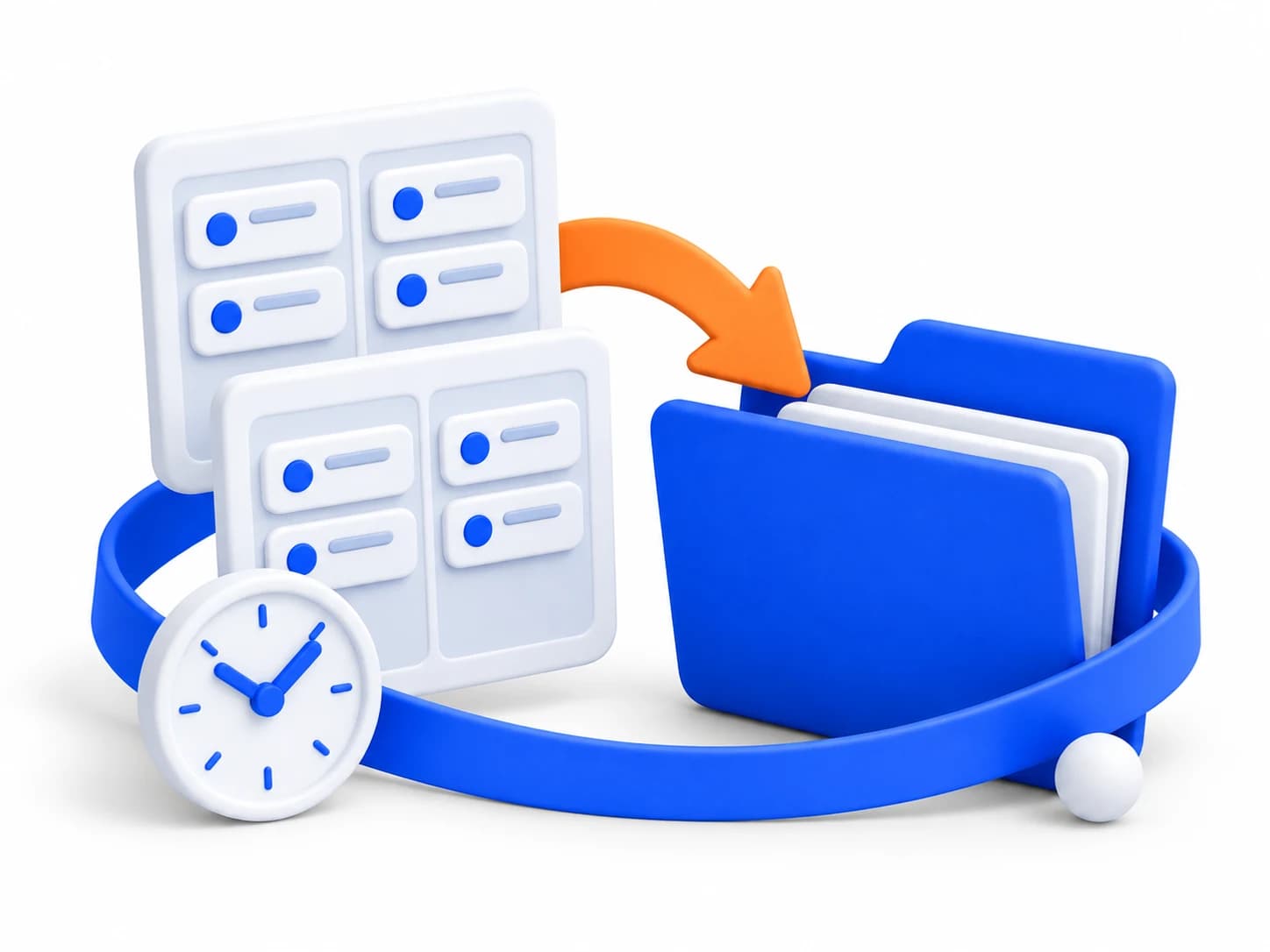
How to move your data from WEEEK
Every step is in Lovox. Open the import and follow the guide on screen.
Choose WEEEK
Open your Lovox workspace settings, go to Import and choose the tool you want to move data from.
Follow the tips on screen
Connect WEEEK and check the projects you need. Tips help you choose what to move and link assignees to Lovox members.
Click “Migrate the data”
Lovox moves the selected data for you. You can see progress and results in the Import section.
What moves over from WEEEK
Projects and tasks will be on Lovox boards. Keep planning work, setting assignees and tracking due dates with your team.
- Projects and boards
- WEEEK projects become board groups in Lovox. Boards keep their names and available columns, and tasks go to them.
- Tasks and members
- Descriptions, dates, labels and supported custom fields move over. You can link assignees and authors to Lovox members.
- Files and work time
- Available attachments and time entries move with tasks. You can leave them out of the import if you don’t need them.
Questions about moving from WEEEK
What moves from WEEEK to Lovox?
The WEEEK import moves projects, boards, tasks and subtasks. It supports descriptions, dates, labels, custom fields, member assignments, available attachments and time entries.
You can change what moves before you start. Choose whether you need completed tasks, files and time entries in the new workspace.
How do I move task assignees from WEEEK?
Before the import starts, Lovox shows the people it found in WEEEK. Match them with members of your Lovox workspace and keep assignee migration turned on.
Assignments will link to the members you chose. After the migration, your team can work on tasks on Lovox boards.
Can I stop the WEEEK import and continue later?
Yes. The migration screen has a stop button. After you stop, you can continue the same import from where it left off. Data that already moved won’t be created again.
You can see progress and results in the Import section. Go back to your migration and click the continue button when you’re ready.
Moving from another tool?
Keep working in Lovox
Choose WEEEK in the Import section. Tips on screen will help you move your data.