
Move to Lovox
Move from Notion
to Lovox

Move pages, databases and files from Notion. Lovox gathers them in the knowledge base, where your team can keep working with them.
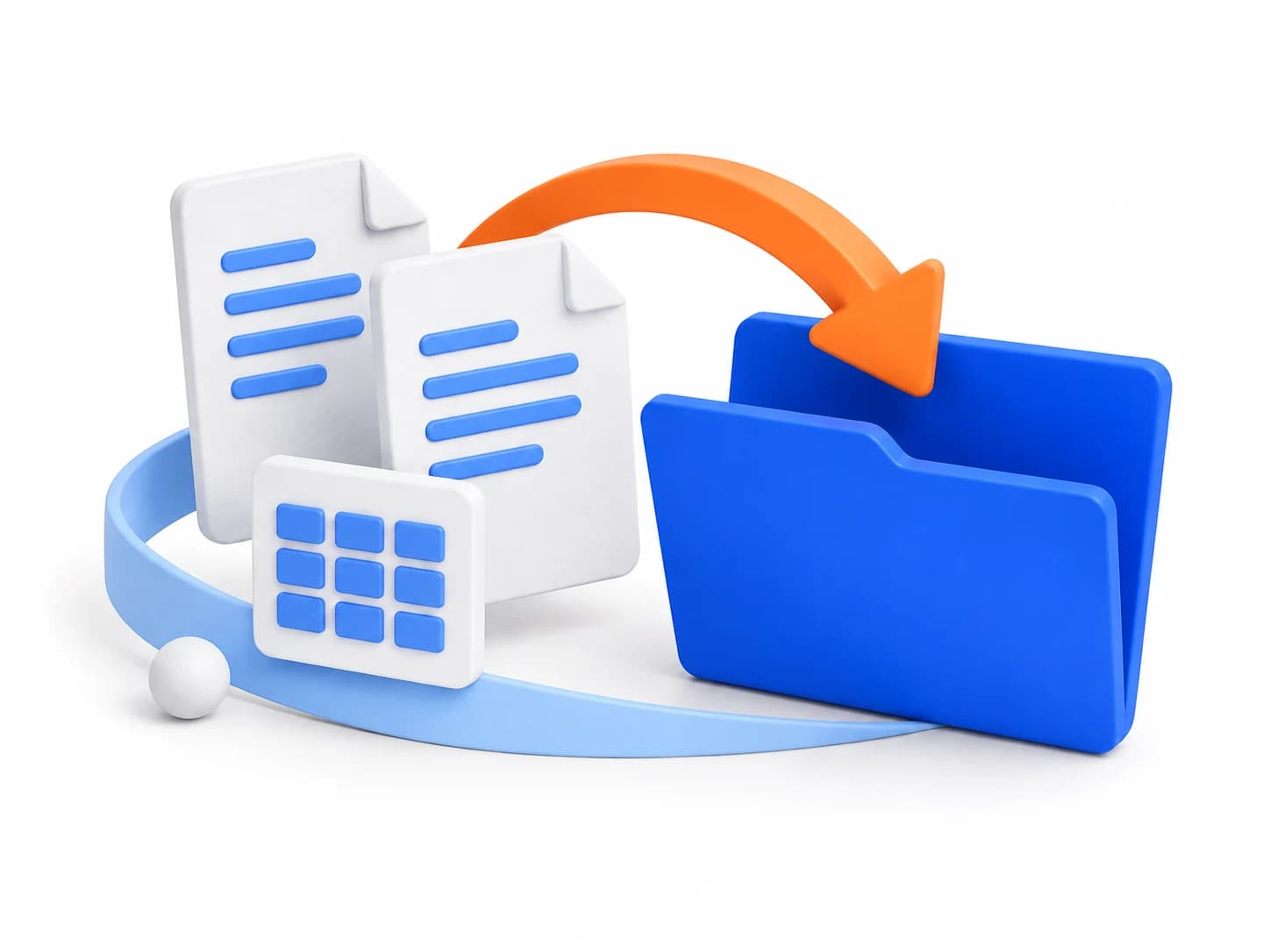
How to move your data from Notion
Every step is in Lovox. Open the import and follow the guide on screen.
Choose Notion
Open your Lovox workspace settings, go to Import and choose the tool you want to move data from.
Follow the tips on screen
The guide helps you connect Notion and share access to pages. Check the content you want to move to Lovox.
Click “Migrate the data”
Lovox moves the selected data for you. You can see progress and results in the Import section.
What moves over from Notion
Guides, notes and databases will be available in your Lovox workspace. You can edit and add to them with your team.
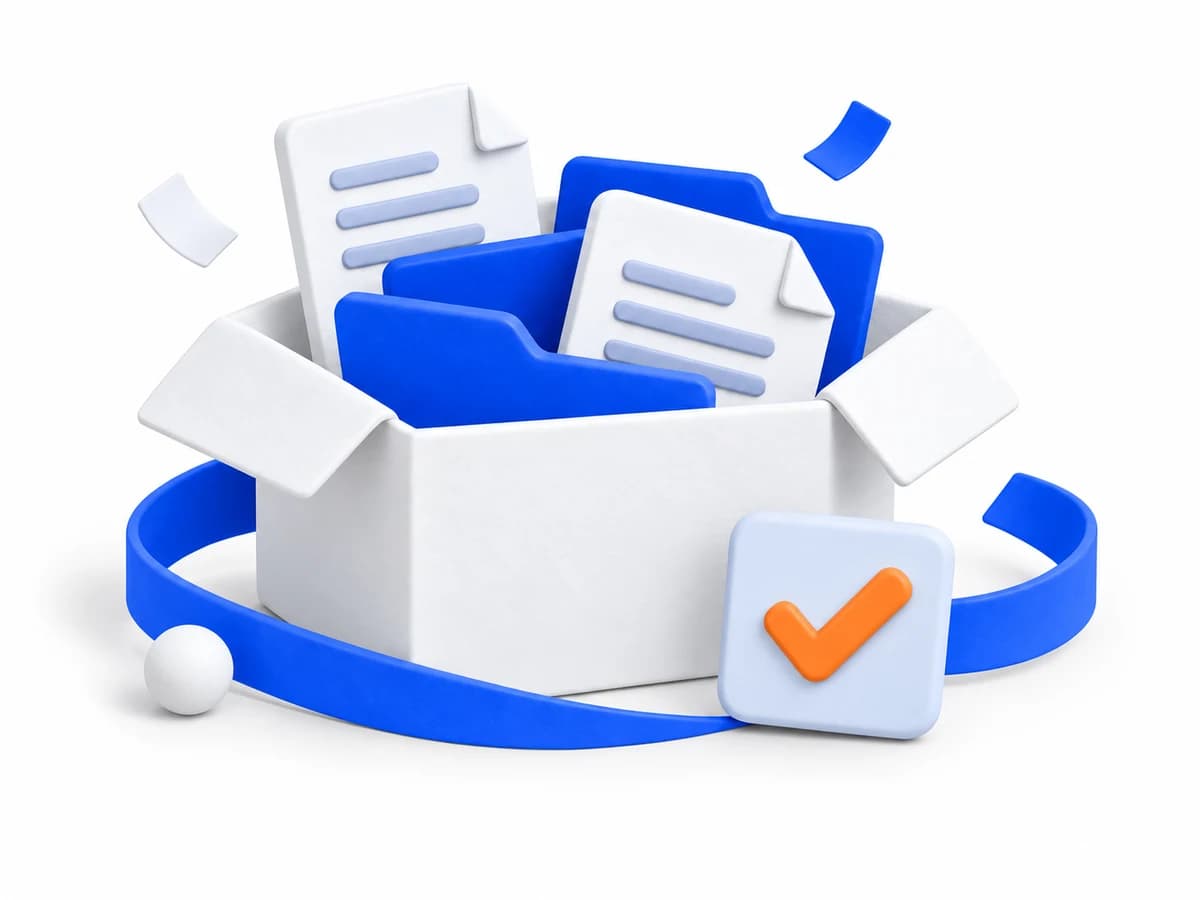
- Pages and nested content
- Notion text becomes Lovox knowledge base articles. Available nested pages move along with the selected page.
- Databases
- Lovox moves database rows and supported properties. After the import, you can open and edit records in Lovox.
- Images and files
- The import uploads available attachments along with your content. You can open images and files in Lovox articles.
Questions about moving from Notion
How do I move a knowledge base from Notion to Lovox?
Lovox connects to Notion through an internal integration. You give it access to the pages you need, enter the token in the Import section and choose the content. You don’t need to export an archive from Notion.
Page content moves to the Lovox knowledge base. There, your team can open guides, edit text and work with database records.
Where do I find my Notion content after the migration?
Migrated pages and databases appear in the knowledge base of your Lovox workspace. You can open pages as articles, and view and edit database records.
Gather guides and work materials in the right sections and give your team access to them.
Moving from another tool?
Keep working in Lovox
Choose Notion in the Import section. Tips on screen will help you move your data.