
Move to Lovox
Move from Trello
to Lovox

Move a Trello board with its columns, cards, due dates and labels. Lovox creates a new board where you can keep working.
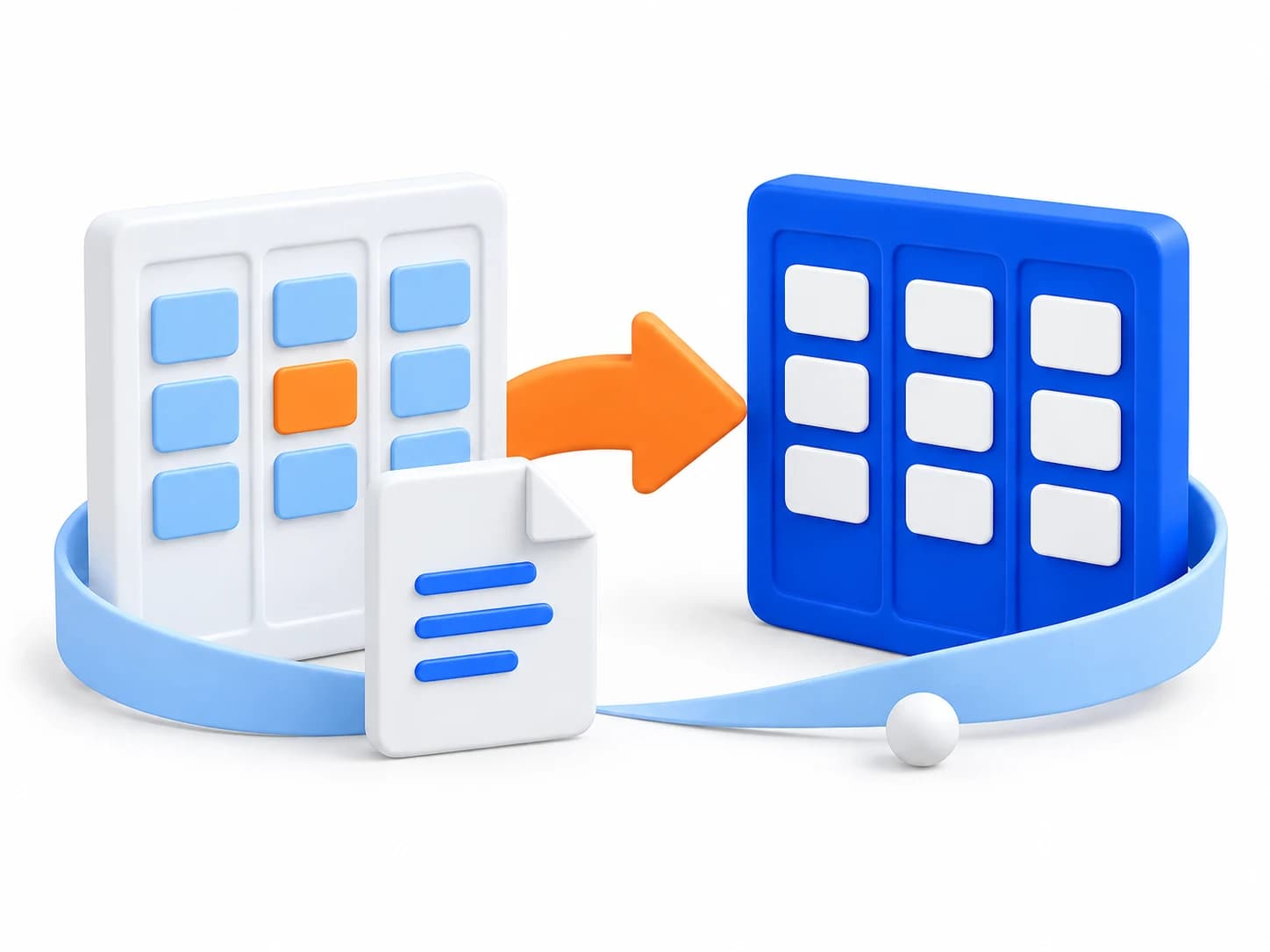
How to move your data from Trello
Every step is in Lovox. Open the import and follow the guide on screen.
Choose Trello
Open your Lovox workspace settings, go to Import and choose the tool you want to move data from.
Follow the tips on screen
Lovox has a guide on how to get a JSON export of your Trello board. Paste the export into the import field.
Click “Import”
Lovox creates a board and opens it after the import. You can keep working with your cards right away.
What moves over from Trello
Columns and cards will appear on a new Lovox board. Add your team, assign tasks and keep working with familiar content.
- Board and columns
- One Trello export creates one new Lovox board. Open Trello lists become its columns.
- Cards and due dates
- Unarchived cards from open lists move to the new board with their titles, descriptions and due dates.
- Card labels
- Named labels move over and stay linked to cards. Colors come from the Lovox palette.
Questions about moving from Trello
How do I move a board from Trello to Lovox?
Export the Trello board you need to JSON. In Lovox, open workspace settings, go to Import and choose Trello. Paste the full JSON text into the import field and start the import.
Lovox creates a new board. Open Trello lists become columns, and unarchived cards from those lists appear in the matching columns.
What Trello card data is kept?
The Trello import keeps card titles, descriptions, due dates and named labels. Labels get matching colors from the Lovox palette.
After the import, open the new board, set assignees and keep working. In Lovox, you can change task statuses, discuss tasks in comments and add files.
Moving from another tool?
Keep working in Lovox
Choose Trello in the Import section. Tips on screen will help you move your data.