
Task and project management with Lovox
Create tasks, assign owners and track deadlines. See your whole team’s work on a board, in a list or on a calendar.
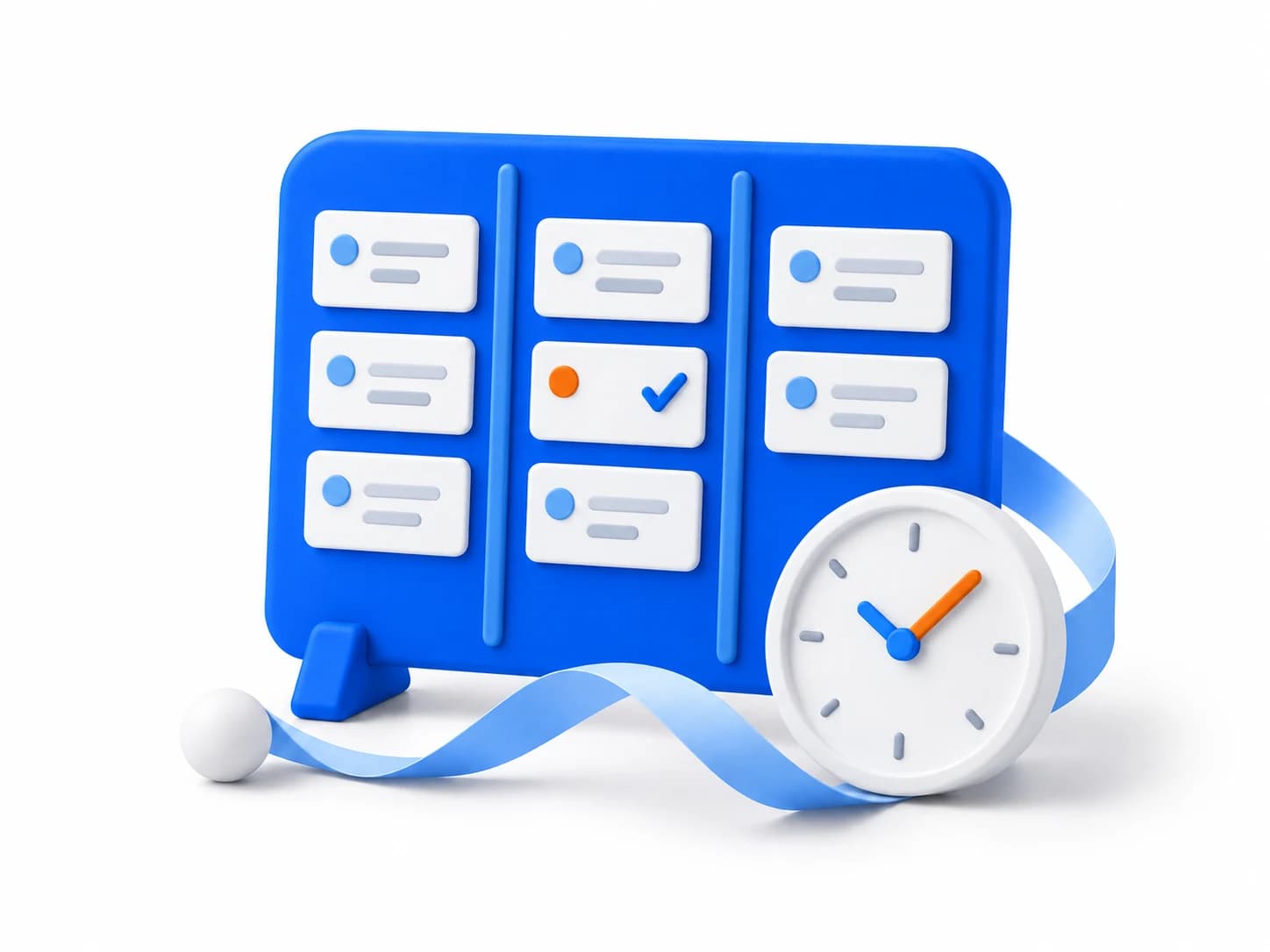
Which services the Lovox task manager replaces

Instead of WEEEK
Move projects, boards and tasks from WEEEK to Lovox directly. The knowledge base and meeting recording work right next to your tasks.
Compare with Lovox
Instead of Kaiten
Lovox has a kanban board with your own statuses and a “Flow” report. It shows how long tasks were in progress and where they got stuck. The knowledge base and meeting recording are right there too.
Compare with Lovox
Instead of Trello
Move boards from Trello to Lovox with an export file. Besides the board, you get a list, a calendar, time tracking and reports.
Compare with Lovox
Instead of Jira
Lovox has your own statuses, subtasks and links between tasks: blocks, duplicates. Lovox works without a VPN, and you pay in rubles.
Compare with Lovox
Instead of ClickUp
Move projects, tasks, docs and files from ClickUp to Lovox directly. Lovox works without a VPN, and you pay in rubles.
Compare with Lovox
Instead of Bitrix24
Lovox brings tasks, the knowledge base, meeting recording and reports together in one workspace. There is no built-in import from Bitrix24 yet.
Compare with Lovox
Kanban board
Each column on the board is a task status: “New”, “In progress”, “In review”, “Done”. A task sits as a card in the column of its status. To change the status, drag the card to another column.
- You name the columns and set their color and order.
- A card shows who is working on the task, the due date, priority, labels, and comment and checklist counts.
- Sort tasks in columns by status, assignee, due date, priority or labels.
Custom statuses
Statuses are the stages a task goes through. You set them yourself: “New”, “Approval”, “Supply”, “Shipped”. Each board can have its own statuses, because each department has its own process.
- A status has a name and a color.
- Each status is marked as active, done or closed. This way reports count tasks correctly whatever the names are.
- Lovox remembers how long a task waited, how long it was in progress and how many times it was sent back.
List view
The list shows the same tasks as the board. Use it when you work with many tasks.
- Hide, reorder and resize columns. The list remembers your setup.
- Sort by name, status, assignee, due date, priority or estimate.
- Group by status, assignee, priority, label or any custom field.
- Each group shows its task count. Collapse the groups you don’t need.
- Add a new task right into the group you need. The status and assignee are filled in for you.
Edit tasks right in the list
Change the status, assignee, due date, priority, labels and estimate without opening the task. Click a cell and pick a new value.
- You can edit custom fields right in the list too.
- The list updates in real time for everyone on the project.
- Group tasks by status, assignee, priority, label or any custom field.
- Add a new task right into the group you need.
- Set up the list in detail: hide columns, group by status, assignee, priority, label or any custom field.
Column totals
Turn on a calculation under any list column. For example, add up the estimates for all sprint tasks or count how many tasks each assignee has.
- Calculate the sum, average, minimum, maximum or count.
- Sum, average, minimum and maximum work for number columns.
- Totals use the filtered tasks. Change the filter, and the total updates.
Calendar view
The calendar shows tasks by due date. Open a week and see what needs to be done each day.
- The calendar shows tasks by day (the task due date).
- You also see all recurring tasks on the calendar.
Filters and saved views
Set up filters once and save them under your own name: “Sprint”, “My tasks”, “Anna’s tasks (review)”.
- Filter by assignee, label, priority, due date, status and custom fields.
- Active filters are shown at the top. Remove any of them with one click.
- Open a saved view with its filters in one click.
Bulk actions on tasks
Select several tasks, and the action applies to all of them at once.
- Add, remove or replace assignees on all selected tasks.
- Move the selected tasks to another board.
- Archive them. They disappear from the board but stay in search and reports.
Task window
A task opens in its own window on top of the board. The window has everything about the task: who is doing it, by when, what is done, subtasks, checklist, links and comments.
- Send a task link to a colleague.
- Minimize the window, switch to something else and come back later.
- Copy a task with all its content.
- Three ways to show the task window: full screen, pop-up and sidebar.
Task fields
There is a set of basic fields: assignee, status, due date, priority, estimate, labels. You can add custom fields if you need them.
- A task can have several assignees if people work on it together.
- Priority: Low, Medium, High or Critical.
- Due date with date and time. Overdue tasks are highlighted in red.
- Recurring tasks: every day, on weekdays, on selected days of the week, once a month or on your own schedule.
- Watchers: people who get notified about every change in the task.
- Time estimate in minutes. In reports, you can compare it with the actual time spent.
- Colored labels: “Incident”, “Needs development”, “Awaiting payment”.
Custom fields
If the basic fields are not enough, add your own. For example, “Client”, “Deal amount” or “Request type”.
- Create a field for one board or for all boards in the workspace at once.
- A custom field appears in the task window, in the list and in filters.
- For a number field, the list calculates the sum, average or maximum.
Eight field types
Use custom fields to build a card for any business process: development, sales, support, purchasing, HR and more.
Text
A short line: contract number, city, deal link.
Long text
A paragraph: terms, a comment on a request, a delivery address.
Number
Amount, quantity, weight. The list calculates totals for these fields.
Checkbox
Yes or no: “paid”, “approved”, “has access”.
Date
Another date besides the due date: shipment, meeting, end of warranty.
Select
One option from a list: request type, channel, source.
Multi-select
Several options at once: services, regions, tags.
Link
A link to a ticket, document or client card in another system.






Subtasks and checklist
Break a big task into parts. If a part has its own owner and due date, make it a subtask. If a step just needs a check mark, a checklist is enough.
- A subtask has its own assignees, due date, status and comments.
- Subtasks are visible inside the task and in the list.
- The checklist shows how many items are done.
Task description
In the task description, you can write and format text and add tables, images, videos and files.
- Headings, lists, checklists, quotes, code and columns.
- Press “/” to pick a block, just like in Notion.
- Add tables, images, videos and files. You can simply drag them in.
- Edit the description together. Your colleagues’ changes appear right away.
Comments
Every task has comments. The discussion stays with the task. A month later, you can easily find what you agreed on without searching through messenger chats.
- Reply in a thread so different topics don’t mix.
- Mention a colleague with @, and they get a notification.
- Add reactions to quickly show you’ve read something.
- Attach files and images, including by drag and drop.
- Pin an important comment to the top.
Watchers and change history
Watchers are people who get notified about every change in the task. The history keeps every change: who changed what and when.
- The author and assignee watch the task automatically.
- Add other people by hand, for example a manager or a client.
- The history shows every change: who made it and when.
- Changes made by automations or AI agents are marked separately.
Links between tasks
Link tasks that depend on each other. You see right away what a task is waiting for and what blocks progress.
- Four link types: related, blocks, blocked by, duplicates.
- Add a link in the task window: find the task you need by name.
- Mark a repeat request as a duplicate so nobody does it twice.
Knowledge base articles in tasks
Attach a knowledge base article to a task, for example the instructions or policy for doing it.
- The article shows which tasks refer to it.
- You don’t need to copy the instructions into every task. A link is enough.
- Edit the article in one place, and it’s up to date in every task.
Recurring tasks
Lovox creates routine tasks for you: a planning meeting every Monday, a report at the start of the month, a daily check.
- Repeat every day, on weekdays, on selected days of the week, once a month or on your own schedule.
- A new copy appears on the board by itself, with all fields.
- Change or skip a single occurrence. The rest stay as they were.
- Future repeats are shown on the calendar.
Board automations
Set up simple “if… then…” rules without coding. For example: a task moves to “In review”, and Lovox assigns a reviewer. A rule can assign people, change the status, add a label or send a notification. Changes made by rules are marked in the board feed. You can pause any rule.
Task moved to a status
The rule runs when a task moves to another column.
Due date arrived
The rule runs on the task due date.
Label added to a task
You can set up a rule for each board label.
Assignee added
The rule runs when someone is added to a task.
Assignee removed
The rule runs when someone is removed from a task.
One rule, one action
Simple rules without chains or complex conditions.


Time tracking
Record how much time a task took and leave a comment. Mark which work the client pays for.
- Tracked time goes to the “Time” and “Billing” reports.
- The report shows how much time you planned and how much you actually spent.
- The cost of work is calculated from hourly rates. You set a rate for a team member or a board and choose the date it starts.
My tasks
All tasks assigned to you are in one list. You don’t need to go through boards to see what to do today.
- It shows tasks from all boards and all workspaces you work in.
- Open a task in a window right from the list.
- Every morning you get an email with today’s tasks.
All tasks
Tasks from all boards on one screen: as a board, a list or a calendar. This way a manager sees the whole team’s work at once.
- Filter tasks by department, person or due date and save the view to open it in one click.
- Change the status, assignee and due date right in the list.
- Matching statuses and labels from different boards are merged into one column.
- Click a folder in the menu to see tasks from all its boards.
Quick search
One search across the whole workspace: tasks, boards, comments and knowledge base articles in one list of results.
- Each result shows the piece of text where the match was found.
- The quick task preview shows the board, status, due date and assignees right away.
- Everyone sees only what they have access to.
Frequently asked questions about tasks in Lovox
What is the Lovox task manager?
Lovox is a Russian service for managing your team’s projects, tasks and knowledge base.
Does Lovox have a kanban board?
Yes. On the Lovox kanban board, each column is a status, and each task is a card in its column. You set the names, colors and order of statuses yourself. You can also group columns by status, assignee, priority, label or any custom field.
Does Lovox have a list view for tasks?
Yes. The list view shows the same tasks as the board. Use it when you work with many tasks. You can hide columns and group by status, assignee, priority, label or any custom field. Each group shows its task count, and you can collapse the groups you don’t need. Add a new task right into the group you need. The status and assignee are filled in for you.
Can I assign several people to a task?
Yes, a task in Lovox can have several assignees. A task also has a due date with date and time, a priority with four levels, an estimate in minutes, labels and watchers. If that’s not enough, add custom fields. There are eight types: text, long text, number, checkbox, date, select, multi-select and link.
Are there subtasks, checklists and links between tasks?
Yes. A subtask in Lovox is a full task with its own assignees, due date, status and comments. For simple steps, there is a checklist with check marks. You can link tasks to each other: related, blocks, blocked by or duplicates.
Can I create recurring tasks?
Yes. Turn on repeat in a task: every day, on weekdays, on selected days of the week, once a month or on your own schedule. A new copy appears on the board by itself, with all fields. You can change or skip a single occurrence. The rest stay as they were. Future repeats are shown on the calendar.
Can I automate work with tasks?
Yes, with board rules and no coding. A rule runs when a task moves to a status, its due date arrives, a label is added, or an assignee is added or removed. Then Lovox assigns people, changes the status, adds a label or sends a notification for you. One rule does one action.
How can a manager see the whole team’s tasks?
Open the “All tasks” screen. It shows tasks from all boards you have access to. View them as a board, a list or a calendar, filter by department, person or due date, and save the view. Each team member has a “My tasks” screen with their tasks from all boards.
Can I track time on tasks?
Yes. In a task, you record how much time the work took and mark whether the client pays for it. The time goes to the “Time” and “Billing” reports. They show how much time was planned and how much was actually spent. The cost of work is calculated from hourly rates.
Can I move tasks from another service?
Yes. Tasks from ClickUp, WEEEK and Notion move to Lovox through a direct connection. Boards from Trello move with an export file. CSV import is not available yet.
Can I see Lovox tasks in Google Calendar?
Yes, with a personal subscription link. Tasks with due dates appear in Google Calendar, Apple Calendar or Yandex Calendar. The calendar only shows tasks. To change them, use Lovox.
Does Lovox work on a phone?
Yes. Lovox opens in your phone’s browser and can be added to the home screen like an app, with push notifications.
How much does the Lovox task manager cost?
Start on the Free plan, no bank card needed. Up to 5 members. You can find paid plan prices on the pricing page.
Is there an app for macOS and Windows?
Yes. There is an app for macOS and Windows. It lets you work in Lovox on your computer without opening a browser.
Create your first board today
Start on the Free plan without a bank card. Members with the export permission can export data.